
Choosing the right tool can be overwhelming when it comes to video editing. Many software programs have lots of features that might confuse beginners.
That’s why it’s important to pick an editor that’s easy to use and navigate. Therefore, in this CapCut tutorial for beginners, we’ll guide you through simple steps to help you get started with an easy-to-use editing tool for creating quality content.
A brief introduction to CapCut desktop video editor
CapCut desktop video editor is a versatile, all-in-one video editing tool designed to cater to both beginners and experienced users. Offering a range of powerful features, CapCut allows users to edit, enhance, and customize videos with ease.
The software includes essential tools like trimming, merging, and cropping, as well as advanced features like keyframe animations, transitions, and color grading. Its intuitive drag-and-drop interface simplifies the editing process, making it accessible even for those with little or no video editing experience.
The software also supports multi-track editing, and audio enhancement, and offers a broad music library for adding the perfect soundtrack. Whether you’re creating content for social media, YouTube, or personal projects, CapCut combines powerful tools with a user-friendly experience, making video editing both simple and enjoyable.
Must-know features of CapCut for beginners
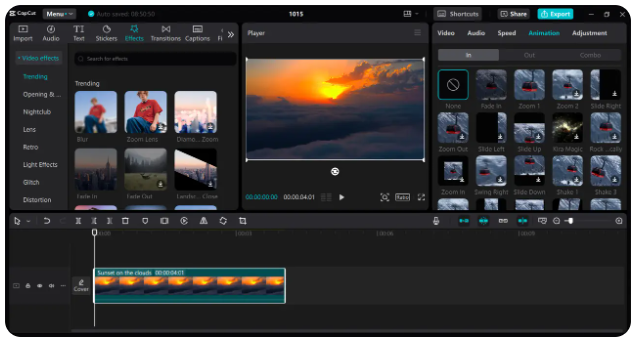
Whether you want to make fun clips for social media or professional-looking videos, the CapCut desktop video editor has everything you need in one place. In this CapCut tutorial for beginners, we’ll look at the below-listed features that will help you create great videos:
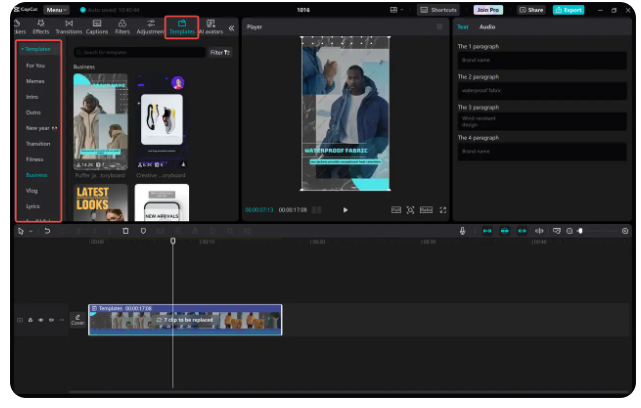
- Library of video templates
It has a wide selection of editable video templates that are ready to use. They save time and make editing easier by providing pre-made layouts and transitions. You can change these templates to match your style, which is perfect for quick projects.
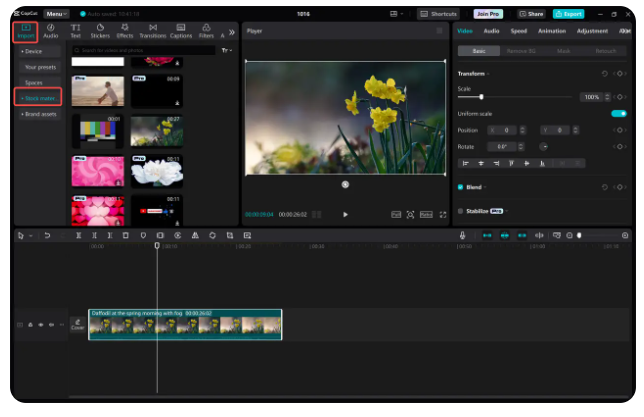
- Stock videos for easy editing
If you don’t have your video, the CapCut desktop video editor has a collection of high-quality stock videos that you can use. This feature makes it easier for beginners to create professional videos without shooting or searching for external content.
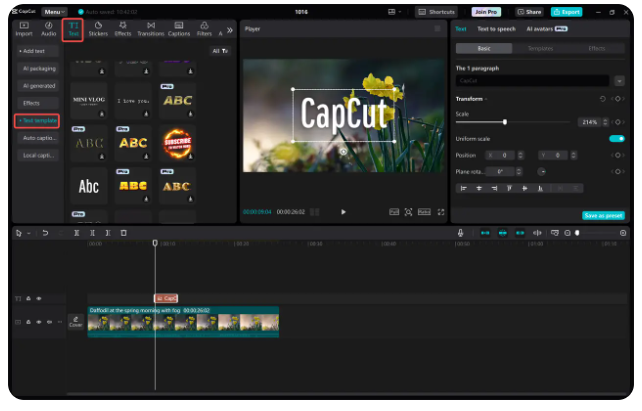
- Customizable text templates
Adding text to a video is easy with CapCut’s customizable text templates. You can select various styles and fonts for subtitles, titles, and captions. It is great for people who want to add a creative touch to videos without much effort.
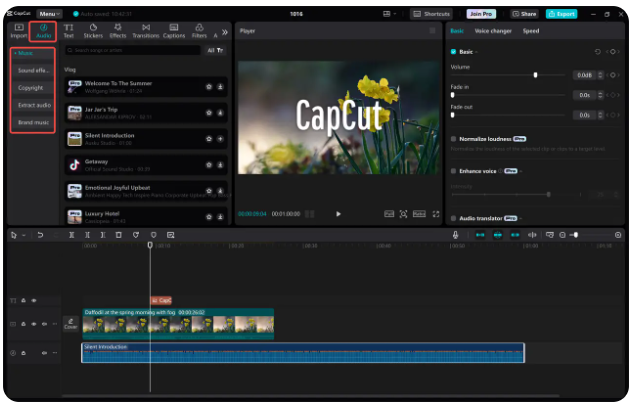
- Free background sounds and music
CapCut desktop video editor has a collection of free background music and sound effects to improve your videos. You can use these sounds without worrying about copyright because they are royalty-free. This makes it simple to enhance videos with professional audio.
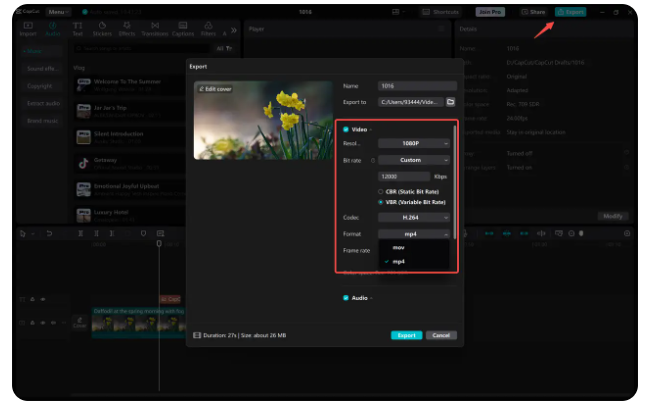
- Export in various formats
When your video is finished, CapCut lets you save it in different formats like MP4 and MOV to easily share it on platforms like YouTube, Instagram, or TikTok. This way, your videos will be optimized for each platform, making it easier to reach your audience.
AI capabilities of CapCut for beginners
CapCut isn’t just a regular video editing tool. It has many smart features that make editing easier and improve your videos, especially if you’re new to editing. They help you work more efficiently and focus on being creative. Some of them are listed below:
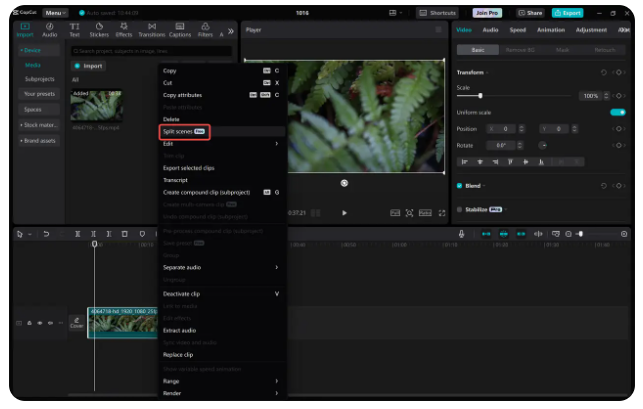
- Split scenes with one click
If you have a long video with different scenes and want to highlight specific moments, CapCut can help you split scenes with one click, making the process effortless. It ensures quick rearrangement and organization of your footage, creating a smoother narrative flow in your videos.
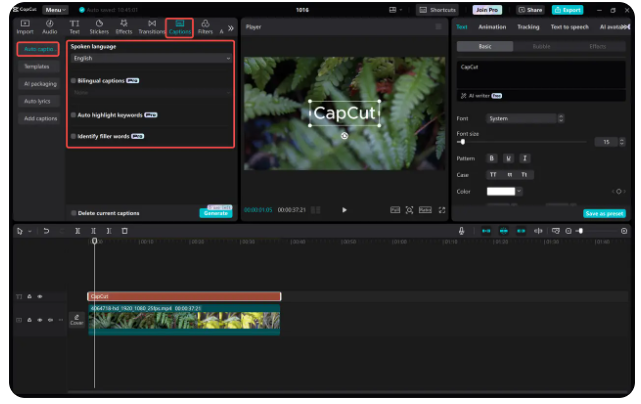
- AI-powered auto-captions
Adding captions to your videos ensures proper accessibility. CapCut’s AI-powered auto-caption feature automatically generates subtitles that match your video’s dialogue, saving you time and effort. This ensures your message is clear and enhances viewer engagement.
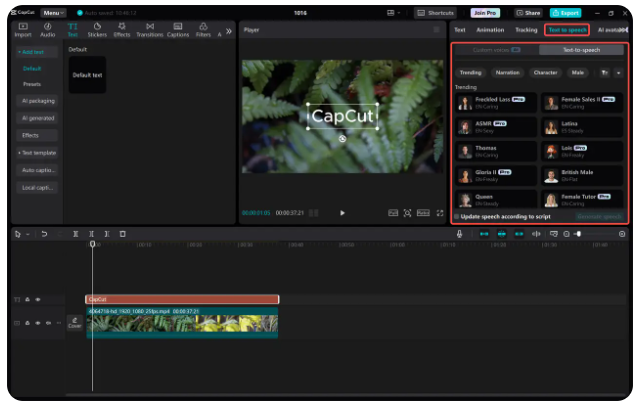
AI-generated text-to-speech
Its AI-generated text-to-speech feature converts written text into spoken words, enabling you to add narration easily. This feature is especially useful for beginners who want to add a professional touch to their videos without the pressure of performing live.
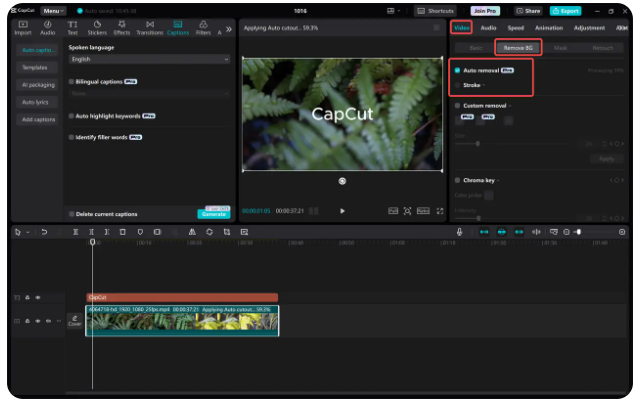
- Smart background removal
Isolating subjects from their backgrounds can make a huge difference in creating dynamic content. CapCut’s smart background removal feature uses AI to detect and eliminate backgrounds, simplifying the process of creating visually appealing videos.
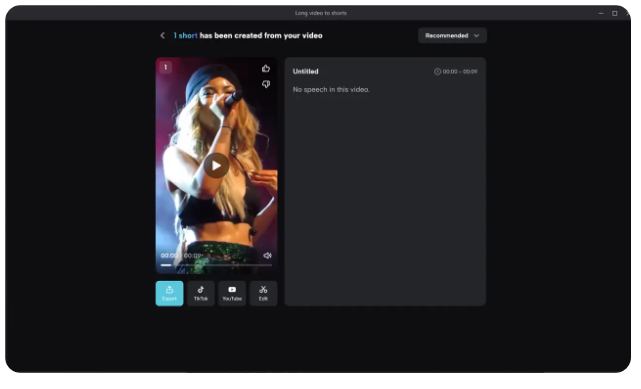
- Convert long videos to short
Nowadays, shorter videos perform better on social media. CapCut’s AI can automatically analyze your longer footage and highlight key moments to create a concise version, saving time and keeping viewers engaged. They can then be uploaded as reels to reach a wider audience.
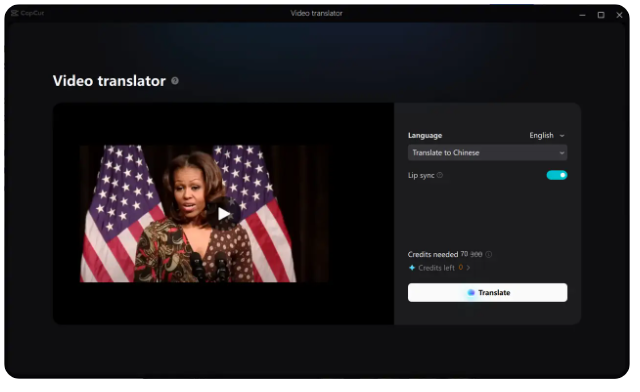
- Video translator
Creating content for a global audience is more important than ever. The video translator feature can quickly translate your video content into multiple languages. Moreover, it can generate captions for your videos in more than 10 languages to reach your target audience.
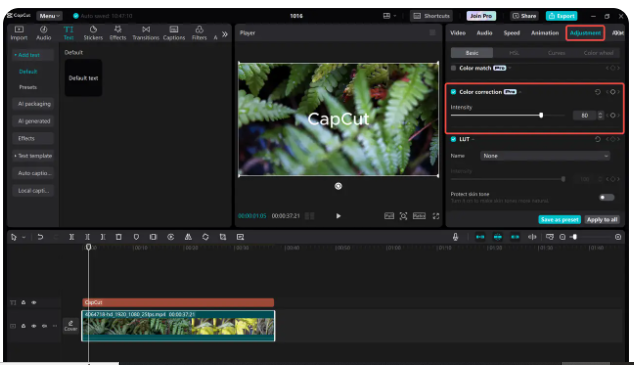
- Color correction
Good color quality can dramatically improve the look of your videos. The color correction tools in CapCut automatically adjust the colors in your footage to enhance vibrancy and balance, simplifying the process of achieving a professional-grade look.
How to use CapCut for beginners on a PC
To get started with CapCut on PC, first download it by clicking the download listed below. Once the download is complete, open the installer and follow the simple instructions to install CapCut on your computer. After installation, launch the app, and you’re ready to start editing your videos with ease.
- Upload the media
Open the CapCut desktop video editor and create a “Create project.” Click on “Import” to upload the video files from your computer or drag them and drop them directly into the interface.
- Edit the video
Now, drop the video onto the timeline to begin editing. First, split the video by dragging the playhead to the point where you want to cut, then click on the “Split” button. This will remove unnecessary sections from the video. Next, enhance your video by adding filters and effects to make it visually appealing. For example, you might want to apply a vintage filter for a nostalgic look or a cinematic effect for dramatic flair. Additionally, you can use transitions between clips to create seamless shifts from one scene to another, which keeps viewers engaged.
- Export and share
Once satisfied with your edits, click the “Export” button to save your video in your desired resolution and format. Your video is now ready to share on social media or with friends.
How to use CapCut for beginners on mobile phone
Editing videos on your phone using CapCut is an easy way to make and edit videos anywhere. The app is designed to be easy to use, making it perfect for beginners in video editing. This CapCut guide for beginners will explain three simple steps to help you make impressive videos:
Upload media
Download CapCut by using the App Store or the Google Play Store. Open the app and create a new project to upload the videos you want to edit.
Fine-tune the video
Click the video in the timeline and add different texts, elements, animations, and filters to add a dynamic touch to the video.
Export your video
Once you’re happy with your edits, tap the “Export” button to save your video to your desired resolution. Your finished video will be saved to your device for easy sharing.
Essential CapCut tips for beginners
When using CapCut for video editing, it’s helpful to have some essential tips to make your experience smoother and more enjoyable. These tips will help you use the app more efficiently and ensure your videos look polished. They are listed below:
- Organize timeline
Group similar clips together and label them so you can easily find sections of your project. This helps you quickly locate the clips you need for adjustments or effects. An organized timeline helps you stay focused and avoid confusion, making editing more enjoyable.
- Use shortcuts
Learning key combinations for common tasks like splitting clips, undoing actions, and zooming in on the timeline can greatly speed up your editing process. Instead of going through menus for every action, use shortcuts to edit your videos more effectively.
- Save frequently
Even though CapCut saves your projects automatically, saving them manually is also good. This is especially important after you make big changes. Saving regularly will ensure you don’t lose edits if something goes wrong or the app closes unexpectedly.
- Preview before export
Before you finish your video, make sure to watch the whole thing. This will help you catch any mistakes, such as audio that doesn’t match up, sudden changes, or parts you don’t want. Watching your video from start to finish ensures that everything goes smoothly.
- Balanced audio
It’s important to have balanced audio levels to make sure the sound is enjoyable to listen to. Pay attention to how loud the background music, voiceovers, and sound effects are. Adjust the audio levels to work well together without drowning out the main audio.